
-
Vijit
- May 14, 2026
- No categories assigned.
- No Comments
What MSP Technicians Should Know
Here is a scenario every MSP technician has lived through at least once. It is 8:47 on a Monday morning. A client calls. Their website is showing a scary red warning in Chrome. Half their staff cannot access the internal portal. Sales are not going through. There is mild panic.
You log in, take a look, and see it immediately: the SSL certificate expired at midnight. Three days ago there was probably a renewal reminder email sitting unopened in someone’s inbox. Nobody acted on it, and now you are the person untangling it at speed while the client breathes down your neck.
Certificate issues are one of the most common — and most avoidable — service calls in managed IT. They are also genuinely confusing for technicians who have never had the underlying structure explained clearly. PKI sounds intimidating, but once you understand the model, certificate errors, chain warnings, and expiry panics all start making obvious sense.
This post covers the essentials: what PKI actually is, how trust works, the cert types you will encounter in practice, what the common failures look like, and how to stay ahead of them.
1. What PKI Is and Why It Exists
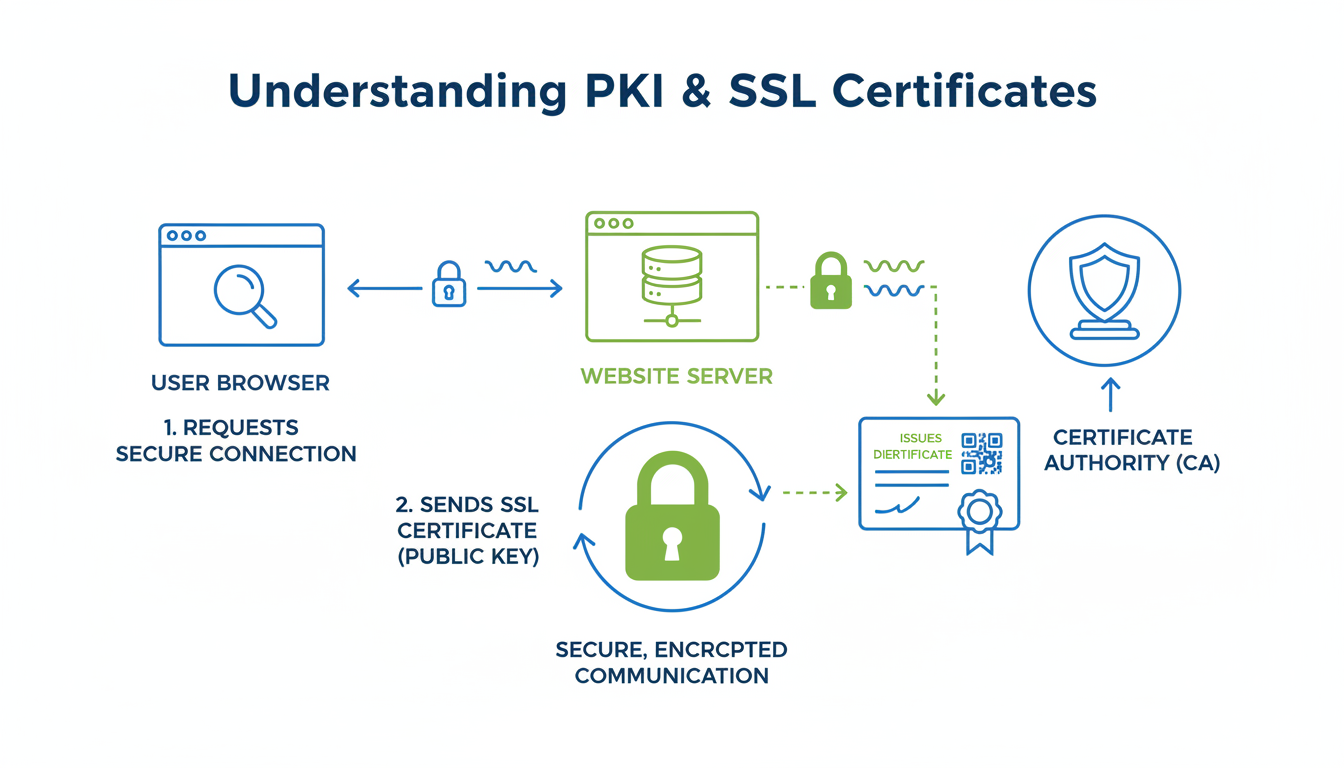
At its heart, PKI is a system for answering one question with certainty: am I really talking to who I think I’m talking to?
When a user visits their company’s banking portal, their browser needs to know that the server it is connecting to is actually the bank’s server — not an attacker capturing credentials in the middle. Encryption alone does not solve this. You can encrypt a conversation perfectly, but if you are encrypting it with an impersonator’s key, you have just handed your secrets to the wrong party. Authentication and encryption have to work together.
PKI solves authentication using trusted third parties called Certificate Authorities (CAs) — organisations like DigiCert, Let’s Encrypt, and Sectigo that issue digital certificates. When a CA signs a certificate for your client’s domain, it is cryptographically vouching: ‘I have verified this server is who it claims to be.’
Browsers and operating systems ship with a pre-installed list of trusted CAs — the trust store. When your browser connects to a site, it checks whether a trusted CA signed the certificate. If yes, it proceeds. If not — expired cert, unknown CA, domain mismatch — you get an error.
| SSL vs. TLS — The Name Confusion You will hear ‘SSL certificate’ used constantly — including in this article. But SSL (Secure Sockets Layer) is technically dead. It was deprecated due to security vulnerabilities and replaced by TLS (Transport Layer Security). Versions 1.0 and 1.1 of TLS are also deprecated. Modern connections use TLS 1.2 or TLS 1.3. The certificates themselves are the same format — they are just called ‘SSL certificates’ because the industry never bothered updating the name. When a client says their ‘SSL is broken,’ it almost certainly means their TLS certificate has an issue. TLS 1.3 (the current standard) is significantly faster and more secure than its predecessors. If you are configuring a server, make sure TLS 1.3 is enabled and TLS 1.0/1.1 are explicitly disabled. |
2. The Chain of Trust — Why ‘Intermediate’ Matters
This is the part that trips people up when they first hit errors like ‘certificate chain incomplete’ or ‘intermediate certificate not trusted.’ The structure is simple once you see it.
CAs do not sign your certificate directly with their most sensitive Root CA key. Instead, they operate a two-tier (sometimes three-tier) hierarchy:
- Root CA: The top of the chain. Self-signed, pre-installed in your browser/OS trust store, kept extremely secure — often offline in a hardware security module in a physically secured facility. Root CAs almost never sign end-entity certificates directly.
- Intermediate CA: Signed by the Root CA. This is what actually signs the certificates issued to websites and servers. If an intermediate Certificate Authority gets hacked, we can revoke it without having to scrap the whole Root CA.
- End-Entity Certificate: The certificate on your client’s server — signed by the intermediate CA, valid for their domain, installed on their web server.
When a browser establishes a connection to a website, it authenticates the entire cert path. This involves the end-entity cert, the intermediate CA cert, the root CA cert, and finally, the trust store. If any link is missing, the connection fails with a chain error.
The most common culprit: the intermediate certificate not being included in the server configuration. The cert was installed but only the end-entity file was dropped in, not the full bundle. The server presents its cert but cannot prove the chain back to a trusted root. The fix is always to reinstall using the full certificate bundle — usually a .pem or .crt file that includes both the end-entity cert and all intermediate certs concatenated together.
3. Certificate Types — Choosing the Right One
Not all certs are equal, and recommending the wrong type wastes client money or leaves them with something that does not fit their situation. Here is the practical breakdown:
| Cert Type | What It Validates | Best For | Watch Out For |
| DV — Domain Validated | Domain ownership only. CA sends a file/email/DNS challenge. | Internal tools, dev environments, small sites where budget is tight. | Browser shows a padlock, not the org name. Phishing websites often employ Domain Validated (DV) certificates. A padlock icon, therefore, isn’t a guarantee of a site’s legitimacy. |
| OV — Organisation Validated | Domain + organisation details (name, country, address verified by CA). | Business websites, client portals, B2B services where identity matters. | Takes 1-3 days to issue due to vetting. No visual indicator in modern browsers — OV identity is only visible in the cert details. |
| EV — Extended Validated | Rigorous legal entity verification. Highest assurance level. | Financial institutions, high-value transactions, regulated industries. | Expensive and slow to issue. The green address bar was removed in Chrome/Firefox — the visual trust signal no longer exists in most browsers. |
| Wildcard | One cert covers *.example.com — any single-level subdomain. | Environments with many subdomains under one domain. Saves managing individual certs. | Only covers one level deep — *.example.com does NOT cover sub.sub.example.com. If wildcard private key is compromised, all subdomains are exposed simultaneously. |
| SAN / Multi-Domain | A single cert covering multiple distinct domains or subdomains. | Hosting environments, Microsoft Exchange, multi-domain product suites. | Adding a new SAN requires a cert reissue — plan for this in rapidly growing environments. |
| Self-Signed | No CA involved. You sign it yourself — trusted by nothing by default. | Internal lab environments, service-to-service mTLS with pinning, dev testing. | Causes browser warnings for users. Clients will call you about this. Never use on anything client-facing. |
Certificate type comparison — validation levels, use cases, and operational gotchas
For most MSP clients — business websites, internal portals, mail servers, VPNs — OV or a properly managed DV certificate via Let’s Encrypt covers the need. Save EV for regulated industries where compliance explicitly requires it.
4. The Common Failures — And What Actually Causes Them
When a certificate error lands in your queue, it usually falls into one of five categories. Knowing which you are dealing with determines the fix immediately.
Expired Certificate
The most common. The certificate hit its validity end date. Modern certificates are capped at 398 days (browsers stopped honouring longer ones in 2020). The fix is renewal — but the real lesson is automation. Let’s Encrypt certificates are 90 days, designed to auto-renew via ACME clients like Certbot or win-acme. Paid certs need a monitoring system with renewal reminders at 60 and 30 days. A cert expiring in production is a process failure, not a technical one.
Domain Mismatch
The cert was issued for www.example.com but the user is accessing example.com (no www), or a subdomain was added after the cert was issued and is not in the SAN list. Fix: reissue with the correct domains in the Subject Alternative Names. Check the existing SAN list with: openssl s_client -connect example.com:443 | openssl x509 -noout -text | grep DNS
Incomplete Certificate Chain
The intermediate cert is missing from the server config. The browser cannot build the trust chain back to the root. Fix: reinstall using the full certificate bundle — a .pem or .crt file that includes both the end-entity cert and all intermediates concatenated. On Nginx, ssl_certificate should point to this bundle. On Apache, use SSLCertificateChainFile or combine them.
Self-Signed Certificate Warning
Someone installed a self-signed cert on something client-facing, or internal tooling was set up with a self-signed cert and users are complaining about the browser warning. For client-facing services: replace with a properly issued cert. For internal tools: use an internal CA (Active Directory Certificate Services can push the root cert to domain-joined machines via GPO) or Let’s Encrypt with a valid internal domain.
Certificate Revocation
A certificate can be revoked before its expiry for any of the following reasons: if the private key is compromised, domain ownership changes, or it was incorrectly issued. Browsers check revocation via OCSP or CRL. This rarely surfaces in day-to-day MSP work, but it matters when a client’s security team asks why a cert is being rejected despite not being expired.

5. Staying Ahead — Certificate Management as a Service
Reactive cert management — fixing expired certs after clients call — is not management, it is firefighting. Build a simple, proactive system:
- Inventory: Know every certificate in every client environment. Tools like SSL Labs, Shodan, or your RMM’s certificate monitoring module can scan and track certs with expiry dates.
- Alert at 60 and 30 days: Two reminders before expiry. The first triggers the renewal workflow. The second is the escalation if nothing happened after the first.
- Automate where possible: Let’s Encrypt with auto-renewal via Certbot or win-acme eliminates expiry risk entirely for domains where it can be used. The 90-day lifetime forces you to have a working renewal process rather than relying on yearly memory.
- Never store private keys in shared locations: Treat private keys like passwords. A key in a shared drive, wiki, or ticket system is no longer private.
Certificate management is one of those services clients do not value until the first time their cert expires and their whole team cannot work. Document it, monitor it, automate it where you can. The expiry call at 9am on a Monday is avoidable — and avoiding it is exactly what managed IT should deliver.
| About TechMonarch Certificate monitoring and management are part of the baseline infrastructure oversight we provide for MSP partners’ clients — because an expired cert at 9am on a Monday is exactly the kind of preventable incident that managed IT exists to prevent. If you want a partner who watches the things clients forget to watch, let’s talk. Get in touch: www.techmonarch.com |
Recent Comments
- No comments to show